Core workflow
- 01
Build a fresh TAP and choose Run or Debug.
- 02
Use Instant Load for a fast development cycle or exercise the ROM-loading route when required.
- 03
Pause to inspect state, Continue to resume, Reset to restart the machine and Stop to end the session.
- 04
Use the virtual keyboard for Spectrum input and detach or scale the display when useful.
OPERATIONS & REFERENCE
Instant Load
Build a fresh project TAP and use the integrated run path for fast loading. Confirm the target shown by the project and runtime. Instant loading shortens the development loop; it does not test an exported WAV or a real cassette interface.
Run, Stop and Reset
Run starts the project’s current executable build, Stop ends the owned runtime session, and Reset restarts the machine state. Choose the action matching your intention. Resetting the machine does not regenerate stale code or save unsaved source.
Pause and Continue
Pause the runtime before inspecting registers or memory, then Continue to resume execution. This control belongs to the project runtime; the isolated ASM tester has its own session. Check which window owns the control before assuming you have paused the program you are watching.
Virtual keyboard
Use the Spectrum virtual keyboard when host key mappings are unclear. Focus the runtime before sending game input, and release held keys when moving back to the editor. Test the actual player controls rather than assuming Mac text entry maps directly to Spectrum keyboard combinations.
Display scale and detach
Scale or detach the Spectrum display to suit the workspace. Keep the current project/runtime identity visible when comparing source to output. A detached display still belongs to the same session; it is not an independent machine or a second build.
48K beeper
Test BEEP through the integrated 48K runtime with audio enabled. Check both audible output and the return to BASIC. Beeper playback is not AY polyphony, and a correct screen or advancing timer alone does not demonstrate that audio was heard.
128K memory banking
Use an original 128K project and inspect bank identity when reading the paged memory window. Review loader paging before calling banked code. A visible address in the $C000 window must be interpreted with the selected physical bank, not as a unique location by itself.
AY audio path
Run the 128K output produced for the project and listen to the intended voices/effects. Music Studio preview, generated PLAY/ASM and runtime playback are separate stages. Where the score uses shared envelope or noise resources, verify the actual combination rather than each voice in isolation.
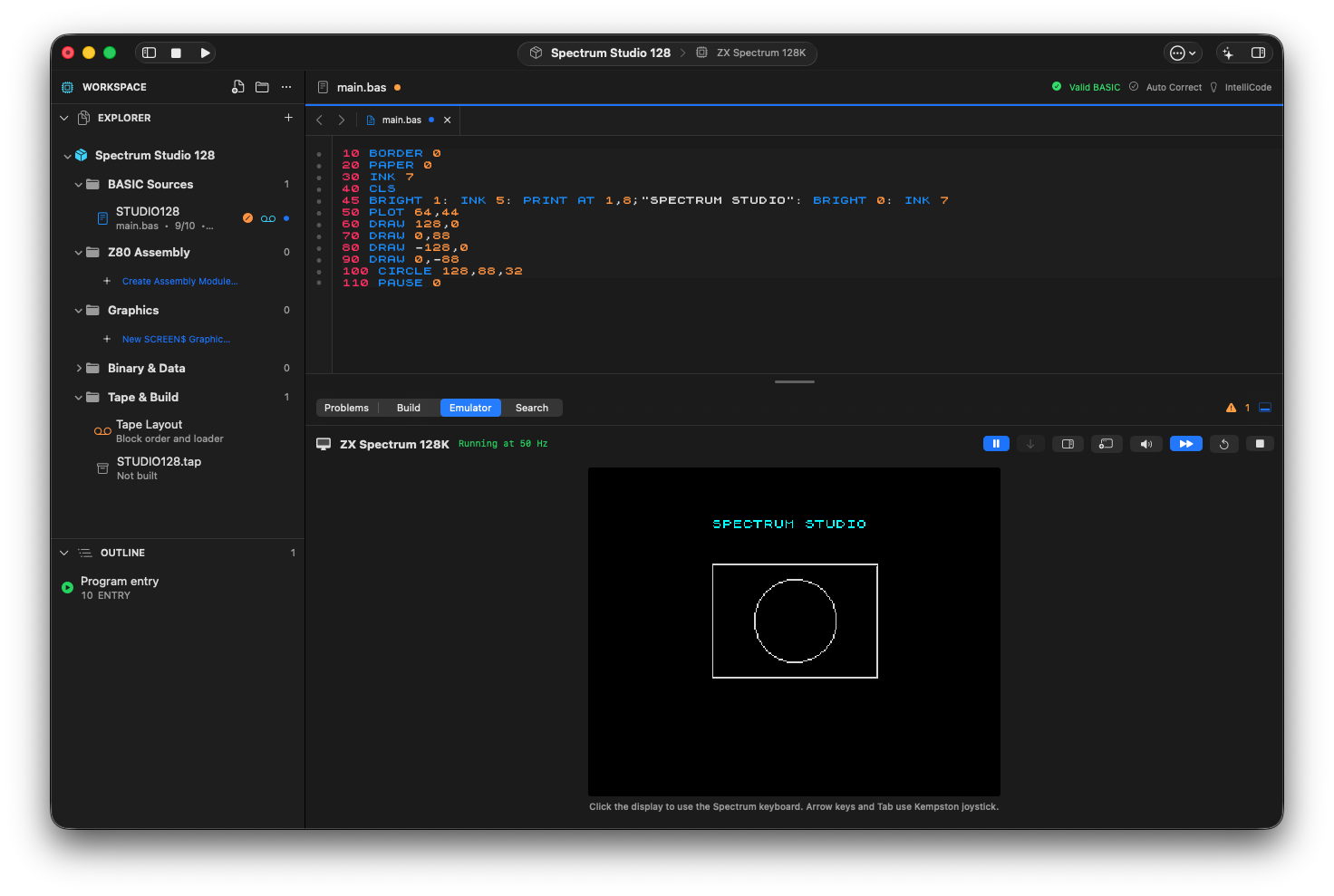
The approved title change running on the 128K target, with the original rectangle and circle preserved.
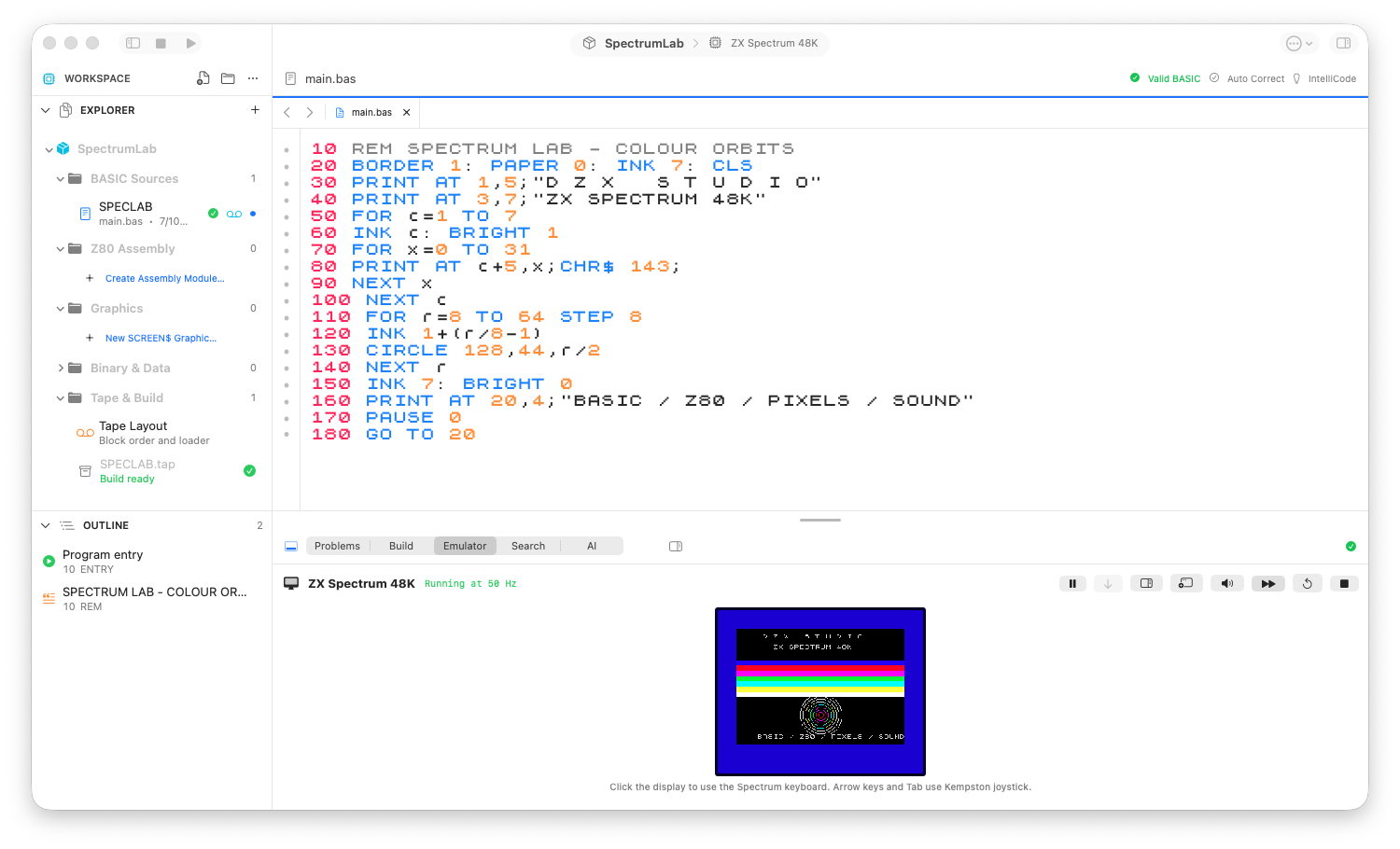
The 48K workbench: project navigator, syntax-aware source and the running program.
Review checks
The runtime target matches the project header.
The program reaches an observable screen, memory or audio result.
Stopping cancels the owned session without leaving stale debugger state.
Boundaries
This is not a general-purpose emulator product.
Interface 1, Microdrive and session snapshots are not modeled.